




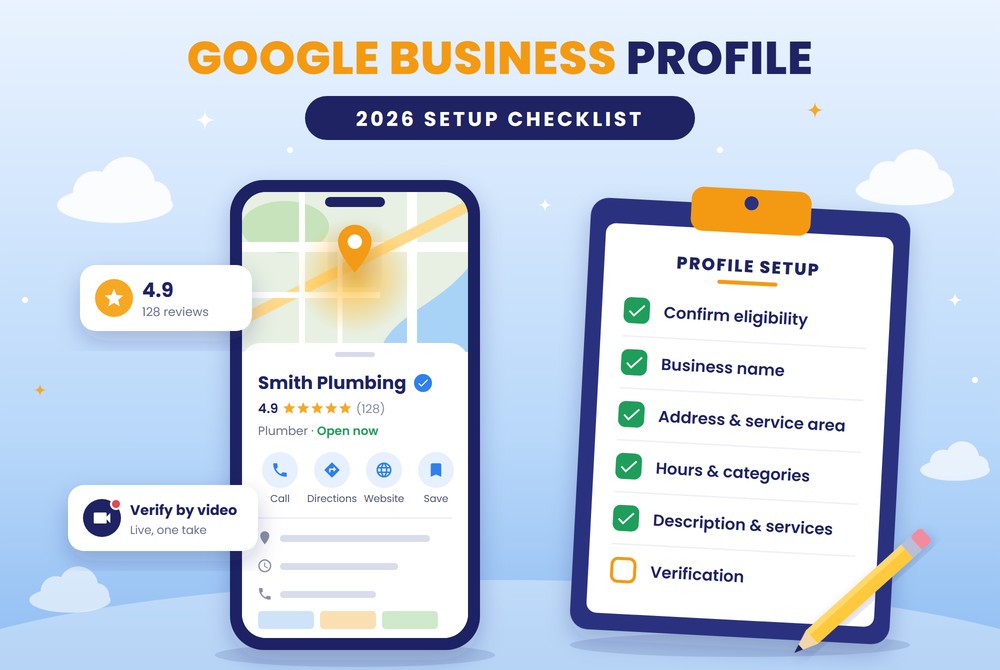






A Google Business Profile is free, but Google enforces detailed rules. A profile set up wrong can be edited by Google, held back in rankings, or suspended. This checklist walks through setup step by step, based on Google’s published guidelines and the changes rolled out through 2026.
Step 1: Confirm your business is eligible
Google only allows profiles for businesses that meet customers in person: either a physical location customers visit, or a business that travels to customers ( Google guidelines ).
You serve customers face to face at your location, at theirs, or both
You are not using a virtual office. A rented mailing address you don’t operate from is not eligible
If you’re in a co-working space, your office has clear signage, receives customers during business hours, and is staffed by your own team
You are not using a P.O. box or remote mailbox as your address
You’re creating only one profile for this location. Duplicates cause display problems on Maps and Search
Step 2: Prepare before you create the profile
Most setup problems start before the profile exists. Get these in place first.
Use a Google account the business owner controls, not an employee’s personal account or a former vendor’s
Decide on your exact business name as it appears on signage, website, and paperwork
Install permanent signage if you’ll show your address. Google expects fixed signage with the business name at that location
Make sure your name, address, phone, and website match everywhere they appear online
Gather documents you may need for verification: business license, utility bill, or lease
Have a logo, a cover photo, and several real photos of your location, team, and work ready
Step 3: Enter your business name correctly
This is the most common cause of suspensions. Your name must match how the business is known in the real world; adding extra information can get the profile suspended ( Google naming rules ). Do not add:
Marketing taglines or slogans
Store codes or location numbers
Trademark or registered symbols
All-caps words (unless that’s genuinely how the brand is styled)
Hours information like “Open 24 Hours” or “Closed”
Phone numbers or website URLs
Service or product keywords (e.g., “Smith Plumbing Emergency Drain Repair”)
Location descriptors like “near downtown” or “off Exit 12”
The same name repeated in two languages
Legal suffixes and special characters (LLC, Inc., symbols) are only allowed with real-world proof such as signage, business cards, or invoices that consistently show them. When in doubt, leave them off.
Step 4: Set your address or service area
How you handle this depends on your business model.
Storefront businesses (customers come to you)
Enter your real street address; put any suite or mailbox number on Address Line 2
Keep URLs and keywords out of every address field
If Google can’t find your address, pin the location directly on the map
Service-area businesses (you go to customers, no storefront)
Hide your address. Google’s own example is a plumber working from home, who should clear the address
Set your service area by the cities or regions you actually serve, generally within about 2 hours’ drive of your base
Don’t create extra profiles for cities without their own staffed location
Hybrid businesses (storefront plus on-site service)
Show your storefront address and set a service area, as long as the location is staffed and receives customers during listed hours
Step 5: Add your phone number and website
Use a local number rather than a central call center line whenever possible
Use a number under the business’s direct control; no premium-rate numbers
Don’t use numbers or links that redirect to anything other than the actual business, including social media pages
Link to your own website, using the location-specific page if you have several locations
Match the phone number on your website to the one on your profile
Step 6: Set accurate business hours
Enter regular customer-facing hours; seasonal businesses can use current seasonal hours
Add special hours for holidays and one-off closures ahead of time
Use “More hours” for specific services (delivery, pickup), kept within your main hours
Seasonal businesses: mark the profile temporarily closed in the off-season, then restore hours on reopening
Skip hours entirely if you operate by appointment only or on varied schedules
Step 7: Choose the right categories
Your primary category is one of the strongest signals for which searches you appear in.
Pick categories that finish “This business IS a…”, not “This business HAS a…”
Use as few categories as possible, as specific as possible
Don’t use categories as keywords or to describe amenities
Skip general categories already implied by a more specific one
Don’t add categories for a different business operating inside or next to yours
Step 8: Write a compliant business description
Cover your services, who you serve, and your history: what’s useful to customers. Limit: 750 characters.
Explain what you do, who you serve, and what makes you different
Mention main services and service area naturally, with no keyword lists
No promotions, sales, or prices
No links of any kind
No gimmicky characters, misspellings, or filler
Step 9: Fill out services, products, and attributes
List every service you offer, each with a short plain-language description
Add attributes that apply (accessibility, payment methods, languages spoken)
Any menu or service menu must list your complete offering, not “popular items” samples
Menu links can’t point directly to third-party ordering or delivery services
Retailers: products must follow Google’s Shopping Ads policy. One violation can remove the whole catalog
Why this matters more in 2026: Google discontinued profile Q&A in late 2025 and replaced it with Ask Maps, an AI tool that answers customer questions using your website, profile details, and reviews. A complete profile and a detailed website now do the job Q&A used to.
Step 10: Complete verification (expect video)
Your profile won’t fully publish until verified. Google picks the method based on factors like profile age and recent changes, and video has become the most common method for new listings.
Check which method Google offers. You can’t simply choose
Video: record live in one continuous take, with no edits, breaks, or pre-recorded uploads
Plan your shot list. Storefront: signage, street, entrance, interior. Service-area: branded materials, tools, equipment, documents, or a work vehicle
Show proof you manage the business: unlock the door, open the register, access staff-only areas
Keep business documents on hand to show on camera if asked
Avoid changing name, address, or categories right after verifying. Core changes can trigger re-verification
Step 11: Upload photos and video
Photos only appear on Google after verification, so add them right after it goes through ( Google photo guidelines ).
Add your logo
Set a cover photo that best represents the business. If it’s low quality, Google may show a customer photo instead
Add exterior photos so customers recognize you on arrival
Add interior, team, and work photos
Use photos that are in focus, well lit, and free of heavy edits or filters
Use real photos of your business, not stock images
Media Format Size Dimensions / length
Photos JPG or PNG 10 KB – 5 MB 720 × 720 px recommended; 250 × 250 px minimum
Up to 75 MB Up to 30 seconds; 720p or higher
Specs per Google’s photo and video guidelines .
Step 12: Build a review process that follows the 2026 rules
Google tightened its review policy on April 17, 2026, and many common review tactics are now violations ( Google prohibited content policy ).
Businesses may not
Offer payment, discounts, or free products or services for a review, or for changing or removing a negative one
Discourage negative reviews or ask only happy customers (review gating)
Require or pressure customers to review while on the premises: no in-store kiosks or handed-over tablets
Ask customers to include specific content in their review
Direct staff to hit review quotas, or to request reviews that mention a staff member by name
Post reviews from employees, family, or anyone with a conflict of interest
What’s allowed
Asking for reviews of genuine experiences, with no incentive and no attempt to influence the rating or content.
Send every customer the same neutral request with your direct review link
Respond to all reviews, positive and negative, professionally and promptly
Never include customer personal details in responses
The stakes: Google can block new reviews, unpublish existing ones, and show customers a warning that fake reviews were removed ( Google ). In the U.S., the FTC’s consumer-review rule also allows penalties up to $51,744 per violation.
Step 13: Lock down ownership and access
The business owner holds Primary Owner status
Employees and agencies are added as Managers, not Owners, when possible
Remove access for former employees and vendors promptly
Never delete a profile to “start fresh.” A name change that alters proper nouns, services, or category counts as a new business: mark the old profile closed, then create a new one ( Google guidelines )
Know the bigger risk: if an account with repeated violations is restricted, every profile tied to it is suspended ( Google policy overview )
Step 14: Maintain the profile after launch
Post updates, offers, or events regularly
Add new photos as your business, team, or work changes
Update hours before every holiday
Keep services and description current when offerings change
Check monthly for edits suggested by Google or the public, and correct anything inaccurate
Keep website content detailed and consistent with the profile. It’s now a primary source for AI answers about your business
Quick reference: common suspension triggers
Keywords, cities, or slogans stuffed into the business name
Virtual office, P.O. box, or unstaffed co-working address
Duplicate profiles for the same location
Showing a home address for a service-area business
Redirecting phone numbers or links that don’t point to the business
Incentivized, gated, or employee-written reviews
Frequent changes to name, address, or category
The bottom line
A Google Business Profile rewards accuracy and consistency more than clever tactics. Set it up to mirror your real-world business, verify cleanly, and ask every customer for reviews the same way. If you’d rather have it set up and managed correctly from day one, the team at AIM Squad can help.